
Add Houston to ChatGPT
For ChatGPT and Dots. Add Houston yourself, then return to your chat.
Stay in Safari throughout setup. Don’t tap “Open in app” if it’s shown.

1. Copy the server URL
Copy this now — you’ll paste it into ChatGPT.
https://ok-houston.com/mcp
2. Sign in and stay in Safari
If asked, log in with the same ChatGPT account and workspace as your conversation.
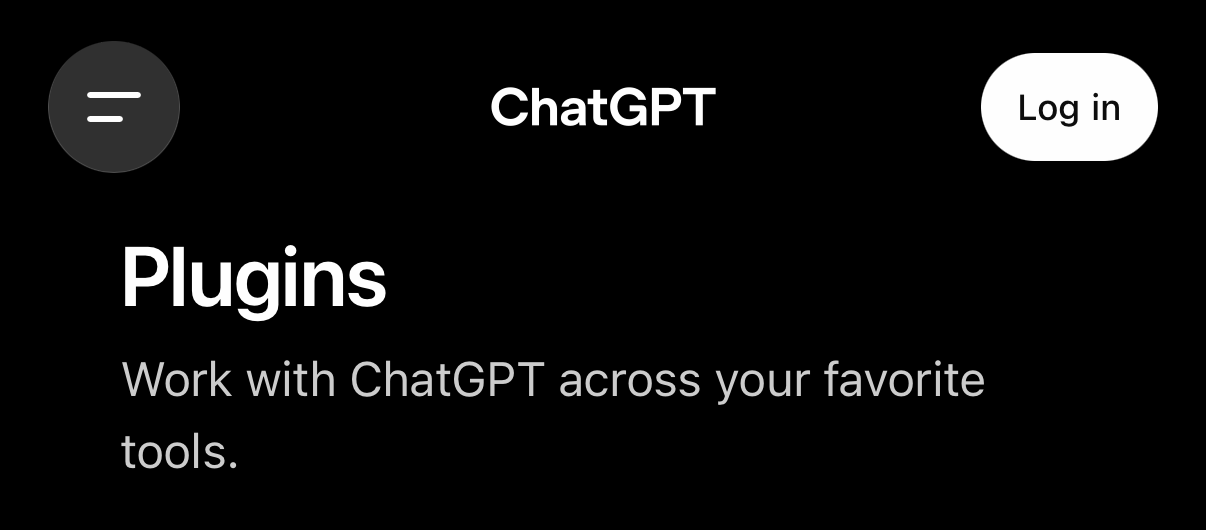
⚠️ If login reopens the app, go back to Safari to continue, now logged in.
3. Add Houston
Choose Add → Add custom MCP server.
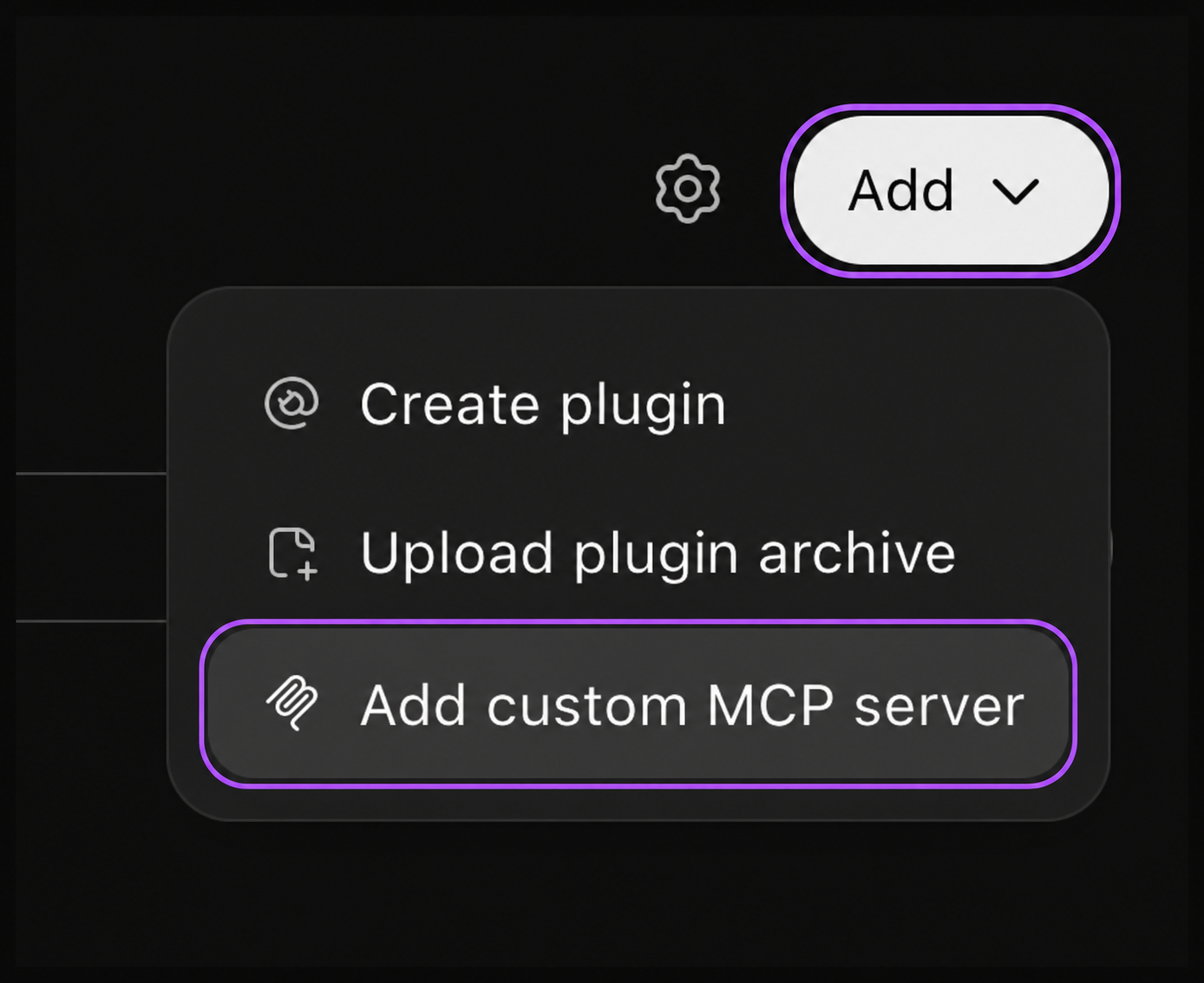
Use Houston as the name. Paste the URL you copied into Server URL and keep OAuth selected.
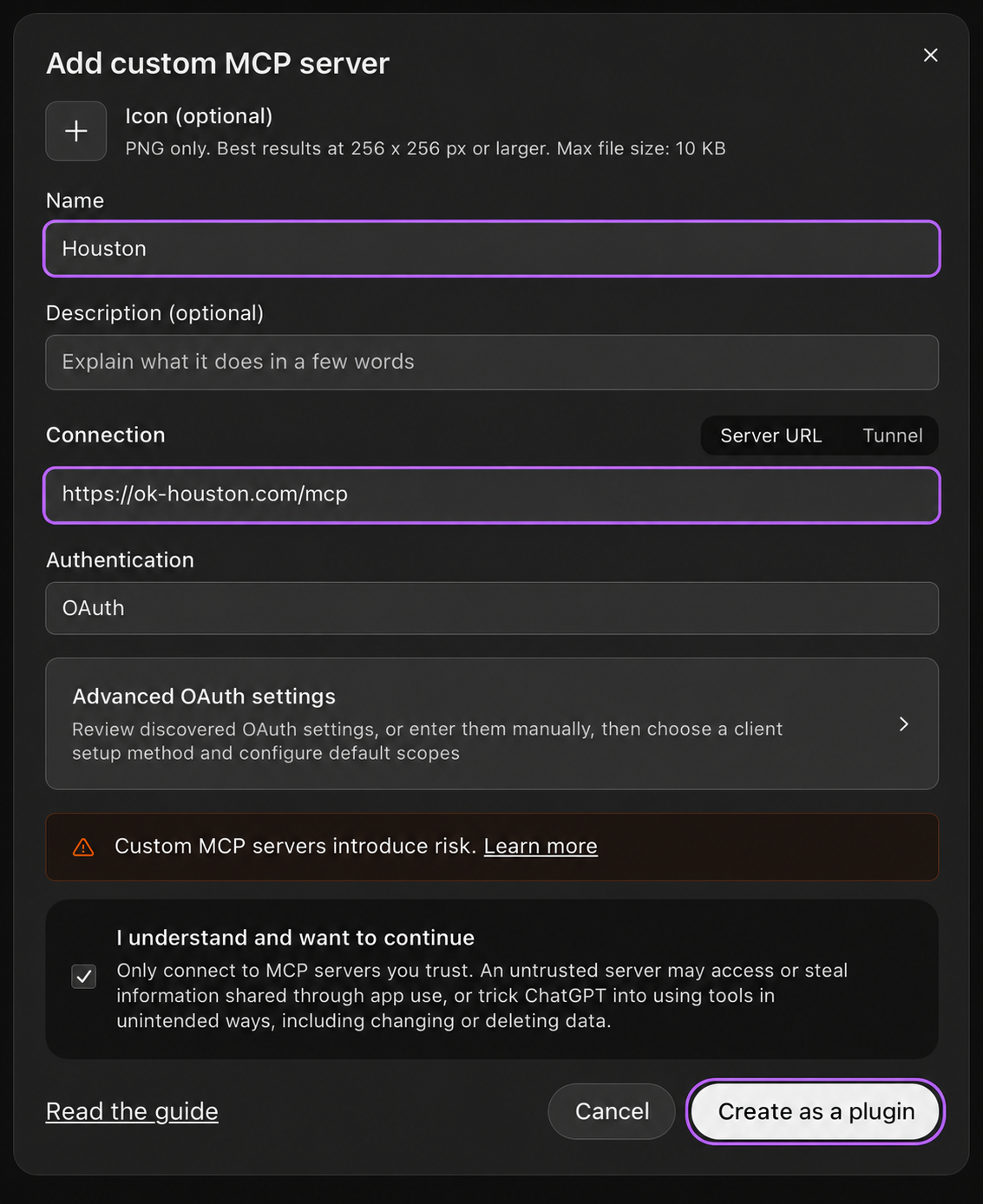
Review the warning, check I understand and want to continue, then choose Create as a plugin.
4. Connect your Houston workspace
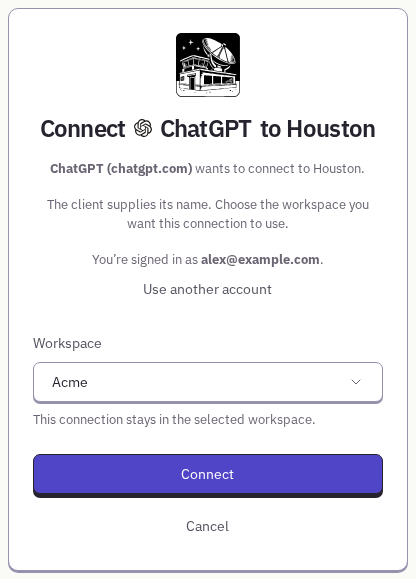
Choose Continue to Houston and sign in or create your Houston account.
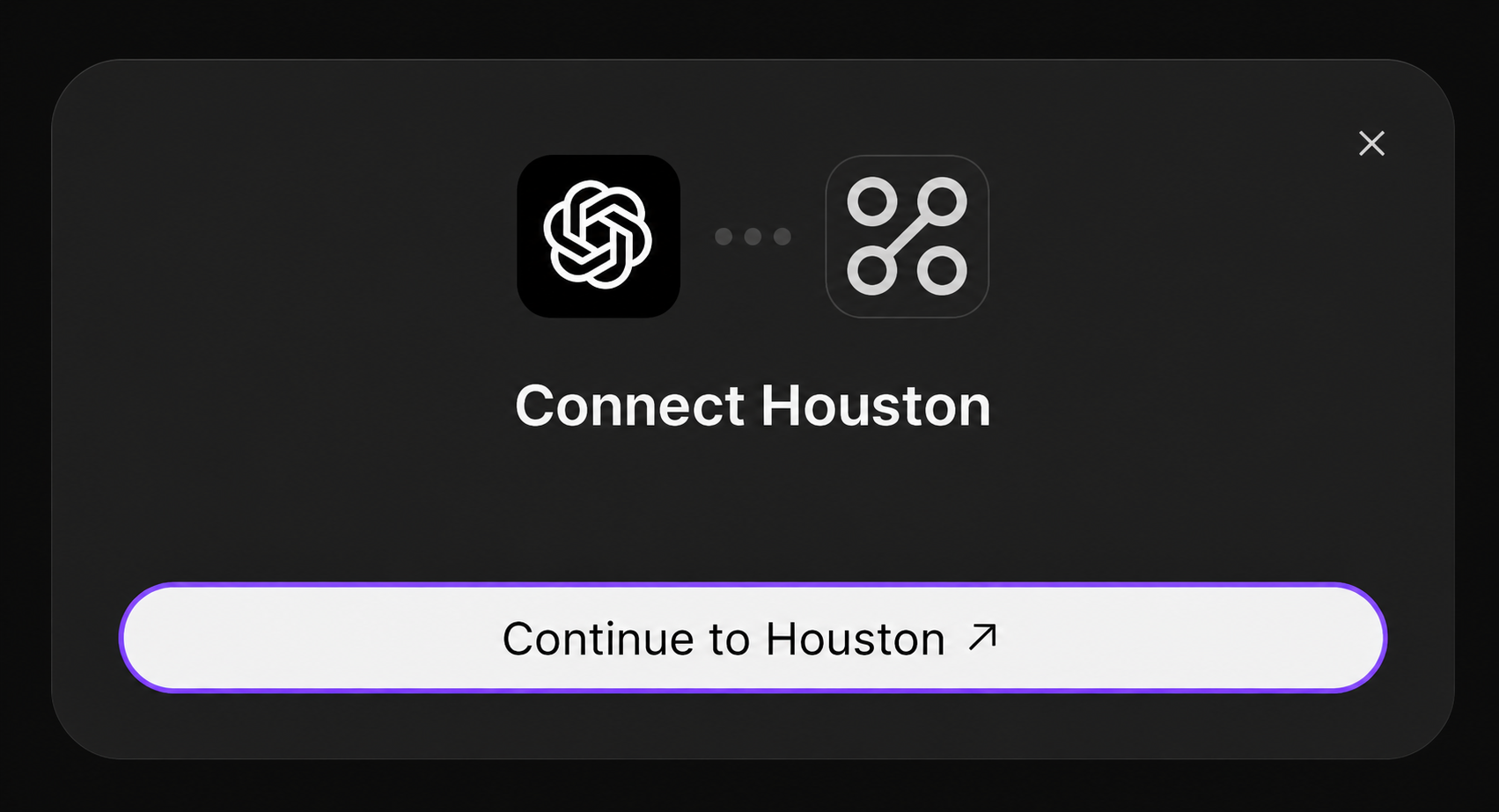
Check your account, choose your workspace, and select Connect.
5. Return to your chat
Say done. On Houston’s first call, choose Always allow for fewer prompts if you trust Houston to run future requests without asking each time.
If Houston isn’t available yet, start a new chat and select Houston with @.
URL copied? You’re ready.
Not on macOS?
Choose your device to update these instructions:
- Open in Safari · iPhone or iPad · Mac
- Open in Chrome · Android
- Open in Edge · Windows
- Another device or browser
If the button doesn’t open your browser, open it yourself and enter chatgpt.com/plugins in the address bar. Keep the server URL you copied for the setup form.